
English
Display Conditions
Display conditions allow users to change block visibility based on conditions. When a condition is applied to a block, the renderer wraps its output in the conditional syntax you define (e.g., Liquid {% if %} / {% endif %}). The conditions pass through unchanged — your sending platform or templating engine should render them before sending.
Configuration
Define available conditions through the editor config:
ts
import { init } from '@templatical/editor';

const editor = await init({
  container: '#editor',
  displayConditions: {
    conditions: [
      {
        label: 'VIP Customers',
        before: '{% if customer.vip == true %}',
        after: '{% endif %}',
        description: 'Only shown to VIP customers',
      },
      {
        label: 'Has Active Subscription',
        before: '{% if subscription.active %}',
        after: '{% endif %}',
        description: 'Shown when user has an active subscription',
      },
    ],
  },
});
DisplayCondition type
ts
interface DisplayCondition {
  label: string;
  before: string;
  after: string;
  group?: string;
  description?: string;
}| Property | Required | Description |
|---|---|---|
label | Yes | Display name shown in the editor UI |
before | Yes | Markup inserted before the block output |
after | Yes | Markup inserted after the block output |
group | No | Group name for organizing conditions in the dropdown |
description | No | Explanatory text shown below the label |
DisplayConditionsConfig
ts
interface DisplayConditionsConfig {
  conditions: DisplayCondition[];
  allowCustom?: boolean;
}
When allowCustom is true, users can write their own before and after strings directly in the editor instead of choosing from the predefined list. Defaults to false.
Grouping conditions
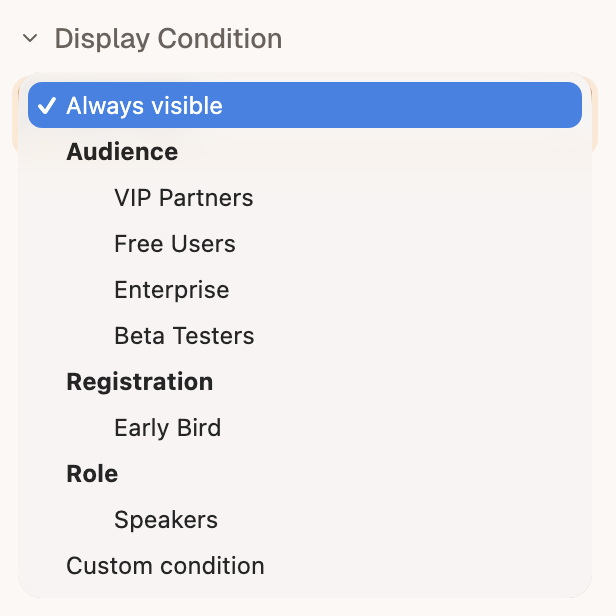
Use the group property to organize conditions into logical sections. Groups appear as labeled sections in the condition picker dropdown.
ts
displayConditions: {
  allowCustom: true,
  conditions: [
    {
      label: 'VIP Partners',
      before: '{% if customer.vip %}',
      after: '{% endif %}',
      group: 'Audience',
    },
    {
      label: 'Free Users',
      before: '{% if customer.plan == "free" %}',
      after: '{% endif %}',
      group: 'Audience',
    },
    {
      label: 'Enterprise',
      before: '{% if customer.plan == "enterprise" %}',
      after: '{% endif %}',
      group: 'Audience',
    },
    {
      label: 'Beta Testers',
      before: '{% if customer.beta %}',
      after: '{% endif %}',
      group: 'Audience',
    },
    {
      label: 'Early Bird',
      before: '{% if registration.early_bird %}',
      after: '{% endif %}',
      group: 'Registration',
    },
    {
      label: 'Speakers',
      before: '{% if role == "speaker" %}',
      after: '{% endif %}',
      group: 'Role',
    },
  ],
}
The before and after fields accept any string, so you can use any templating syntax your platform supports — Liquid, Handlebars, AMPscript, Jinja2, or anything else.
Output
When a block has a display condition assigned, the renderer wraps the block's HTML output with the before and after strings:
html
{% if customer.vip == true %}
<tr>
  <td>
    <!-- block content here -->
  </td>
</tr>
{% endif %}
The editor and renderer treat the before and after strings as opaque — they are inserted exactly as defined.
Applying conditions in the editor
Users select a display condition from the block settings panel. Each block can have at most one display condition. In the editor canvas, blocks with conditions show a filter icon so it's easy to see which content is conditional at a glance.
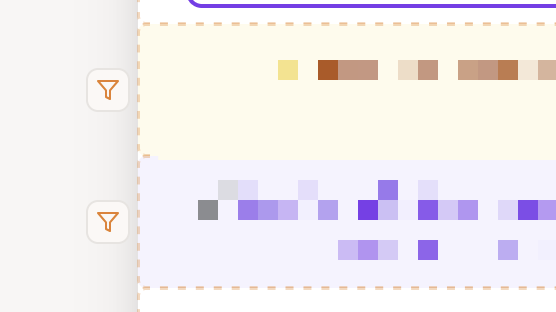
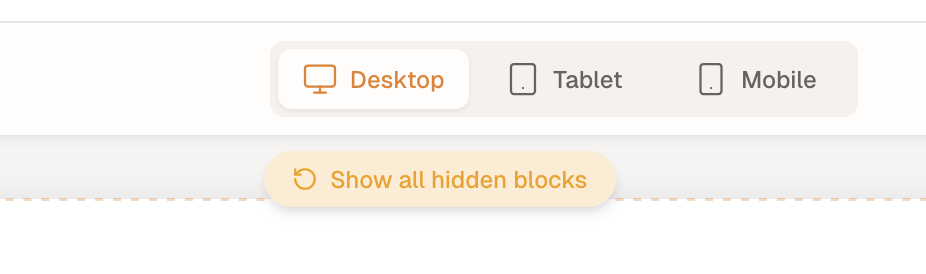
Clicking the filter icon hides the block, simulating a falsy condition. This lets users preview how the template looks when certain conditional blocks are not visible. When any block is hidden this way, a restore button appears in the editor to bring all hidden blocks back.
Evaluating conditions for real
The filter icon simulates a falsy condition — it's a manual what-if, and nothing checks the condition against data. To have conditions actually evaluated, wire the resolvePreview hook: your backend receives the template and can omit blocks whose condition doesn't hold for a given recipient, so the preview shows the real variation rather than one you toggled by hand.
While a resolver is showing the preview, the filter icon and the restore button step aside — the resolver has already checked each condition against real data, so a hand-toggled hide would override the answer you asked for. Your hidden blocks come back when you leave the preview.
Checking each variation
Two ways, and they answer different questions:
- Preview Rendering — wire
resolvePreviewand each variation renders in the editor, without sending anything. Fastest loop while authoring, and the only one that shows a variation for a recipient you can't mail. - Test emails — send to different recipient profiles and confirm each renders in a real inbox. Slower, but it exercises your platform's own evaluation and the mail client, which no preview can. :::
In the playground
The Display conditions setup passes displayConditions, so any block can be shown or hidden per recipient.